D3D12RaytracingReSTIR.exe [...]
- [-forceAdapter <ID>] - create a D3D12 device on an adapter . Defaults to adapter 0
- [-vsync] - renders with VSync enabled
- [-disableUI] - disables GUI rendering
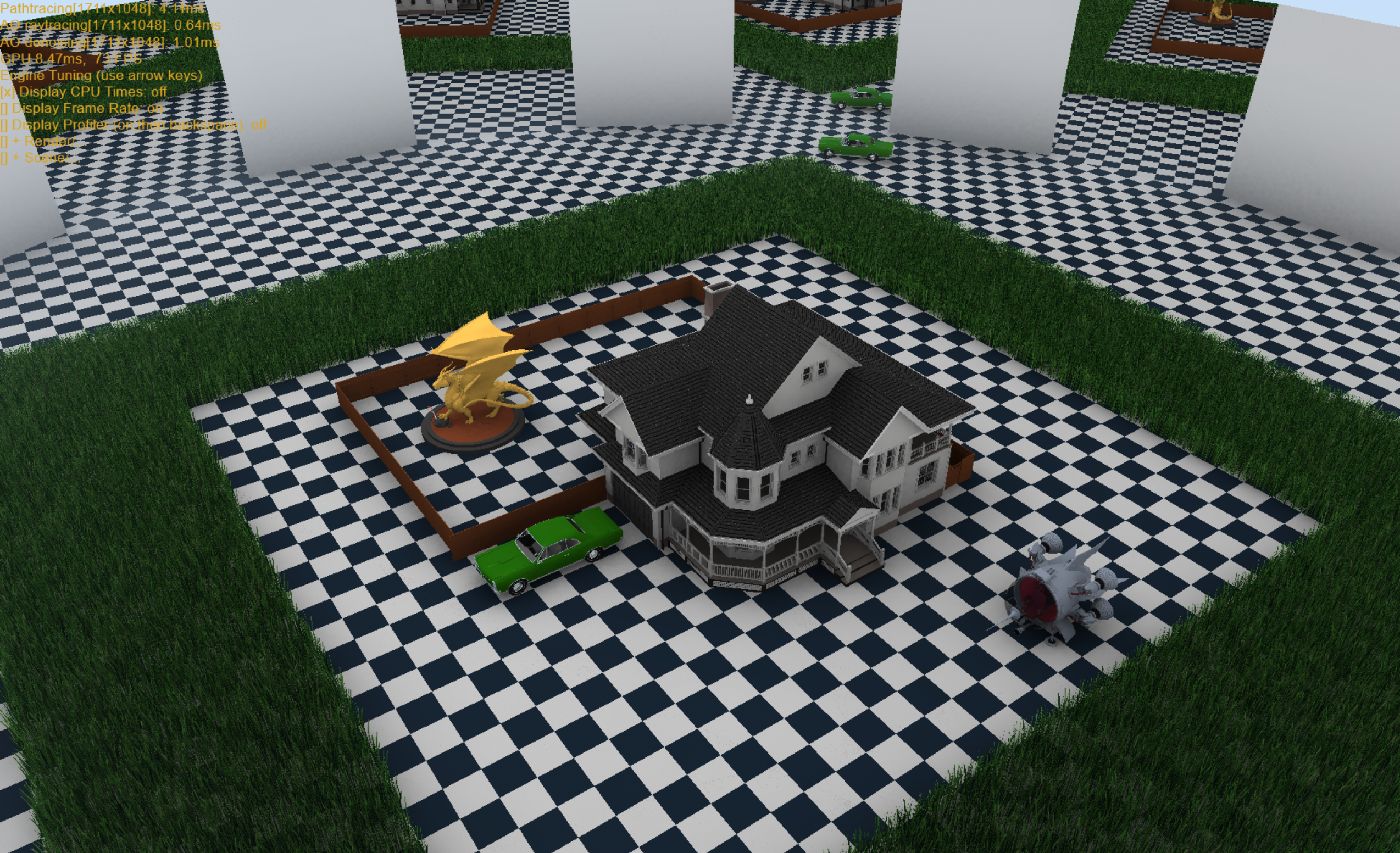
The sample defaults to 1080p window size and 1080p RTAO. In practice, AO is done at quarter resolution as the 4x performance overhead generally doesn't justify the quality increase, especially on higher resolutions/dpis. Therefore, if you switch to higher window resolutions, such as 4K, also switch to quarter res RTAO via QuarterRes UI option to improve the performance.
The title bar of the sample provides runtime information:
- Name of the sample
- Frames per second
- GPU[ID]: name
The GUI menu in the top left corner provides a runtime information and a multitude of dynamic settings for the Scene, RTAO and the Denoiser components.
- UP/DOWN - navigate among the settings
- LEFT/RIGHT - change the setting
- Backspace - toggles the settings menu ON/OFF. If "Display Profiler" is enabled, it toggles between settings menu and a profiler UI.
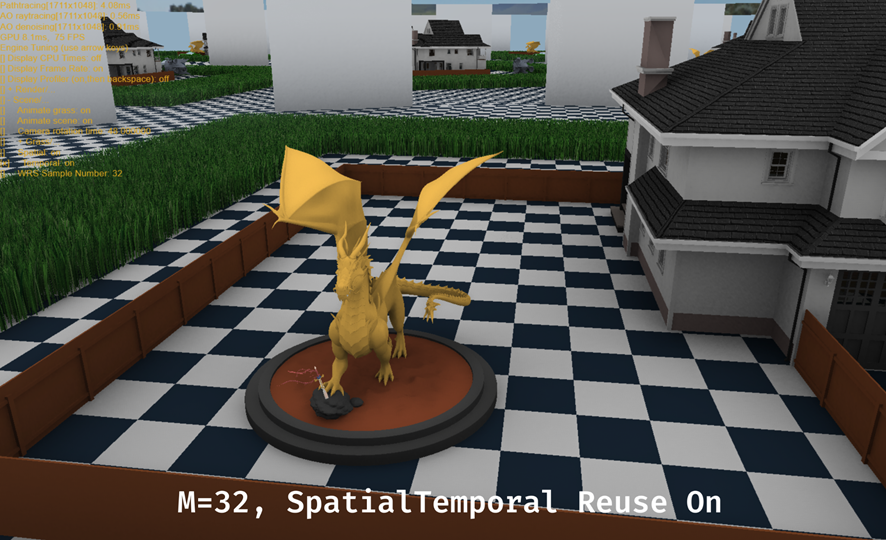
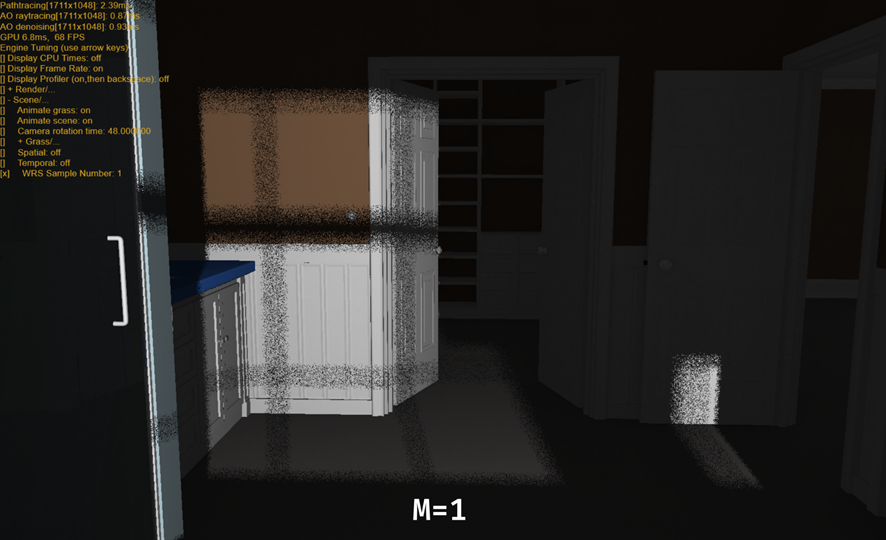
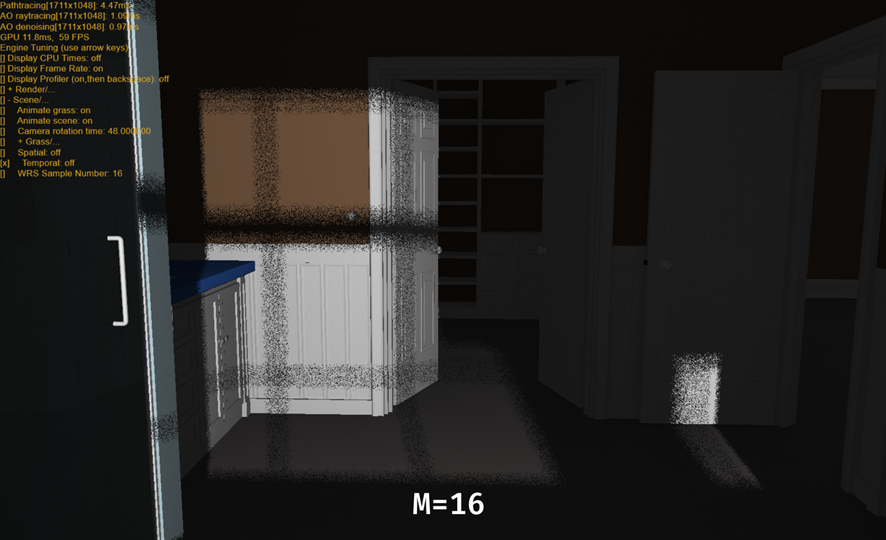
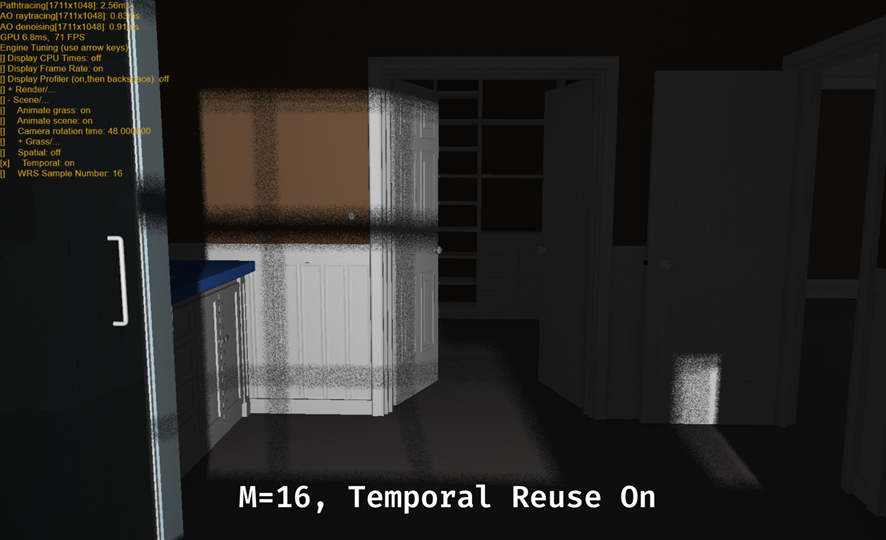
In the Scene menu, you can change the following settings for ReSTIR:
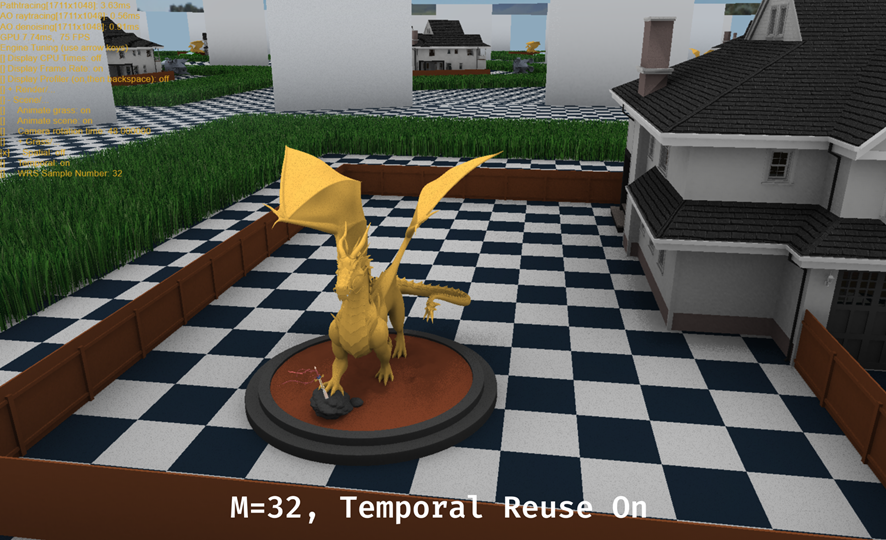
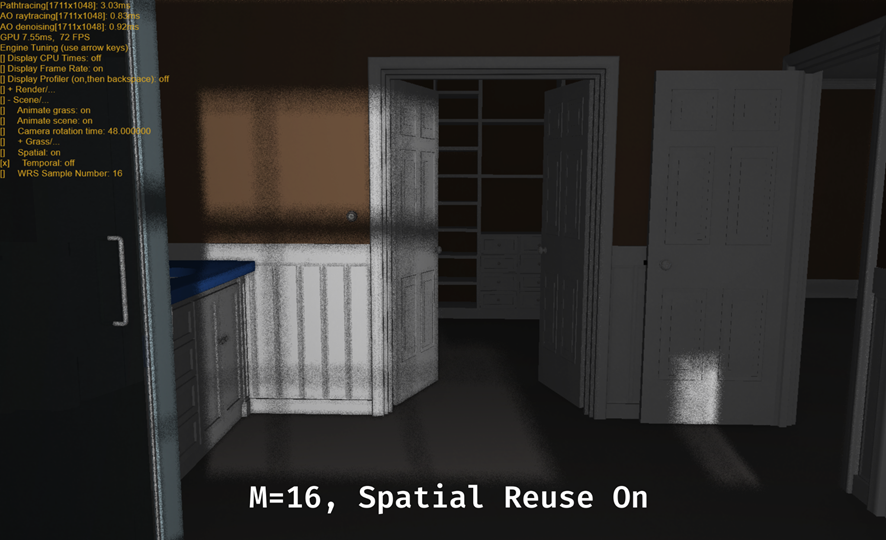
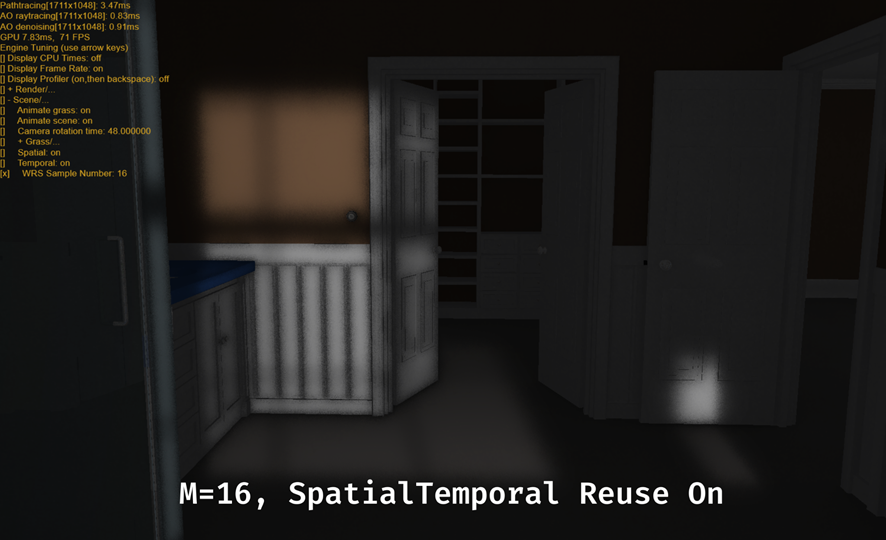
- Enable Temporal Reuse - toggles Temporal Reuse ON/OFF
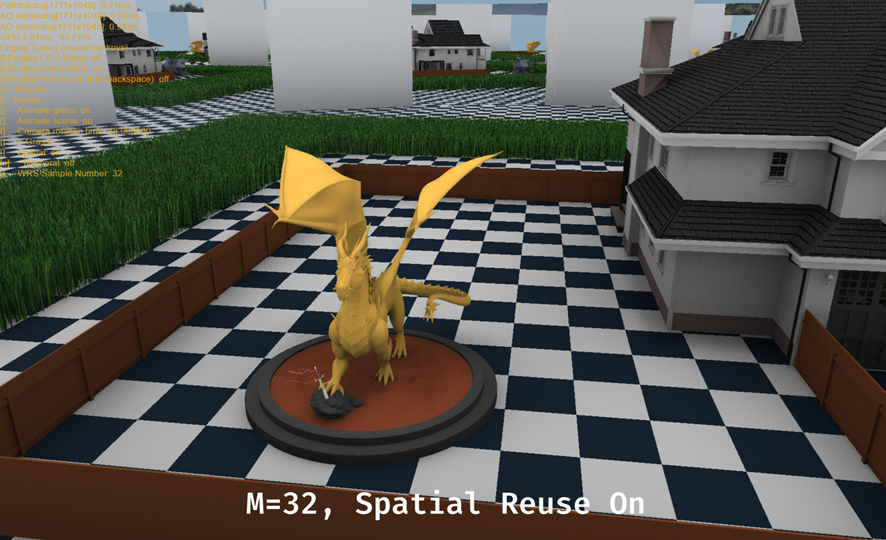
- Enable Spatial Reuse - toggles Spatial Reuse ON/OFF
- WRS Reservoir Size - sets the size of the reservoir for Weighted Reservoir Sampling. The default value is 32.
- ALT+ENTER - toggles between windowed and fullscreen modes
- W,S - moves camera forward and back
- A,D - moves camera to the side
- Shift - toggles camera movement amplitude
- Hold left mouse key and drag - rotate camera's focus at position
- Hold right mouse key and drag - rotate scene
- L - enable/disable light animation
- C - enable/disable camera animation
- T - toggles scene animation
- 0 - Toggles Ground Truth spp vs 1 spp and switches to raw RTAO visualization
- 1 - Raw/single frame RTAO visualization
- 2 - Denoised RTAO visualization
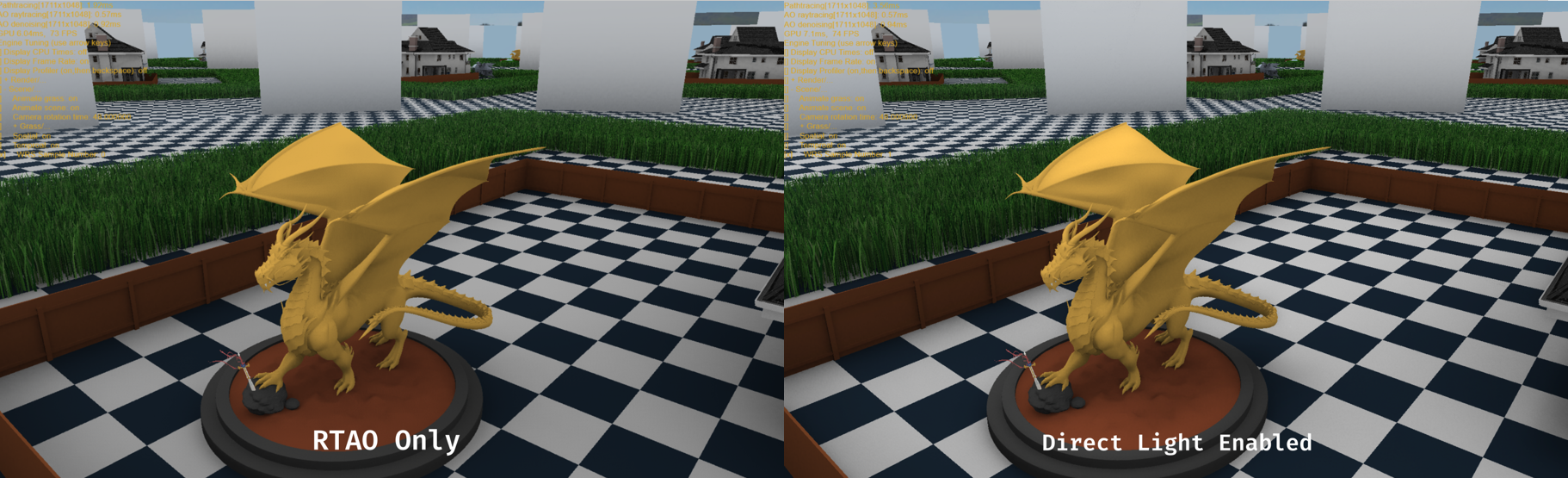
- 3 - ReSTIR + Specular PBR Pathtracer + RTAO visualization
- 4 - Toggles RTAO ray lengths - short | long
- ENTER - Toggles RTAO ON/OFF in "Specular PBR Pathracer + RTAO visualization mode"
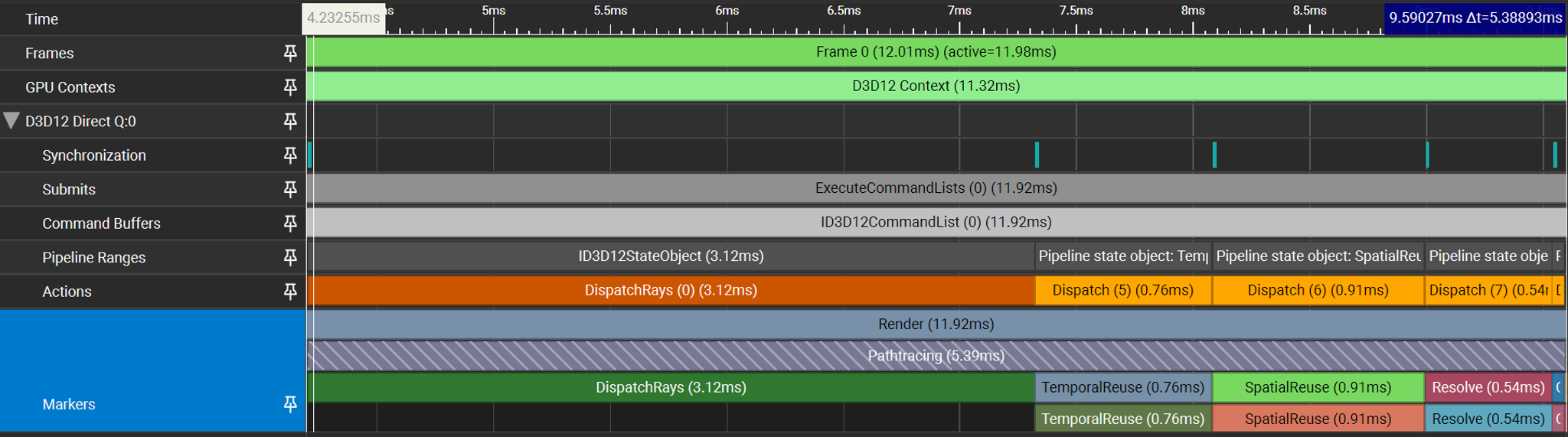
- F9 - does a profiling pass. Renders 1000 frames, rotates camera 360 degrees and outputs GPU times to Profile.csv
- space - pauses/resumes rendering
- U/Y - moves car by the house back and forth
- J/M - moves spaceship up and down
- H/K - rotates spaceship around scene's center
- ESC - terminate the application
- Build and run the DX12 sample:
D3D12RaytracingRealTimeDenoisedAmbientOcclusion- Press key 3 to enter PBR path tracer mode — this will be the base for modifications
- Learn the basics of ReSTIR
- Modify the test scene:
- Generate Area Lights (currently only directional light is used)
- Pass Area Lights data to the shader
- Update the existing path tracer:
- Add support for sampling from Area Lights
- This will serve as the baseline for comparison with ReSTIR
- Integrate ReSTIR into the path tracer mode.
- Weighted Reservoir Sampling.
- Spatial Reuse Shader.
- Temporal Reuse Shader.
- Shade Pixel.
- Improving or extending the
GenerateAreaLightsfunction. - PBRT Light Loading
- Invisible Light Sources
- Experiment with different ReSTIR parameters (e.g. reservoir size.)
- Compare performance and quality across different settings and baselines
- Modify the default scene
- Add or adjust geometry from https://github.com/wallisc/DuosRenderer/tree/DXRRenderer/Assets
This repo contains the DirectX 12 Graphics samples that demonstrate how to build graphics intensive applications for Windows 10.
We invite you to join us at our discord server. See our YouTube channel for tutorials, our spec repo for engineering specs of our features and devblogs for blog posts. Follow us on Twitter @DirectX12 for the latest! See the related links section for our full list of DX12-related links.
Finally, make sure that you visit the DirectX Landing Page for more resources for DirectX developers.
In the Samples directory, you will find samples that attempt to break off specific features and specific usage scenarios into bite-sized chunks. For example, the ExecuteIndirect sample will show you just enough about execute indirect to get started with that feature without diving too deep into multiengine whereas the nBodyGravity sample will delve into multiengine without touching on the execute indirect feature etc. By doing this, we hope to make it easier to get started with DirectX 12.
-
D3D12 Mesh Shaders: This sample demonstrates how Mesh shaders can be used to increase the flexibility and performance of the geometry pipeline.

-
D3D12 Variable Rate Shading: This sample demonstrates how shading rate can be reduced with little or no reduction in visual quality, leading to “free” performance.

-
D3D12 Raytracing: This sample demonstrates how DirectX Raytracing (DXR) brings a new level of graphics realism to video games, previously only achievable in the movie industry.


In addition to the samples, we are announcing the first DirectX 12 preview release of the MiniEngine.
It came from a desire to quickly dive into graphics and performance experiments. We knew we would need some basic building blocks whenever starting a new 3D app, and we had already written these things at countless previous gigs. We got tired of reinventing the wheel, so we established our own core library of helper classes and platform abstractions. We wanted to be able to create a new app by writing just the Init(), Update(), and Render() functions and leveraging as much reusable code as possible. Today our core library has been redesigned for DirectX 12 and aims to serve as an example of efficient API usage. It is obviously not exhaustive of what a game engine needs, but it can serve as the cornerstone of something new. You can also borrow whatever useful code you find.
- High-quality anti-aliased text rendering
- Real-time CPU and GPU profiling
- User-controlled variables
- Game controller, mouse, and keyboard input
- A friendly DirectXMath wrapper
- Perspective camera supporting traditional and reversed Z matrices
- Asynchronous DDS texture loading and ZLib decompression
- Large library of shaders
- Easy shader embedding via a compile-to-header system
- Easy render target, depth target, and unordered access view creation
- A thread-safe GPU command context system (WIP)
- Easy-to-use dynamic constant buffers and descriptor tables
Some samples require support for DirectX 12 Ultimate, see this post for details.
This branch is intended for the latest released Windows 10 version.
- Windows 10 version 2004 (no new features were added in version 20H2)
- Visual Studio 2019 with the Windows 10 SDK version 2004(19041)
This branch is intended for features available in the latest Windows Insider Preview
- Windows 10 Insider Preview builds (Dev Channel)
- Visual Studio 2019 with the Windows 10 Insider Preview SDK
We're always looking for your help to fix bugs and improve the samples. File those pull requests and we'll be happy to take a look.
Troubleshooting information for this repository can be found in the site Wiki.
This project has adopted the Microsoft Open Source Code of Conduct. For more information see the Code of Conduct FAQ or contact opencode@microsoft.com with any additional questions or comments.